
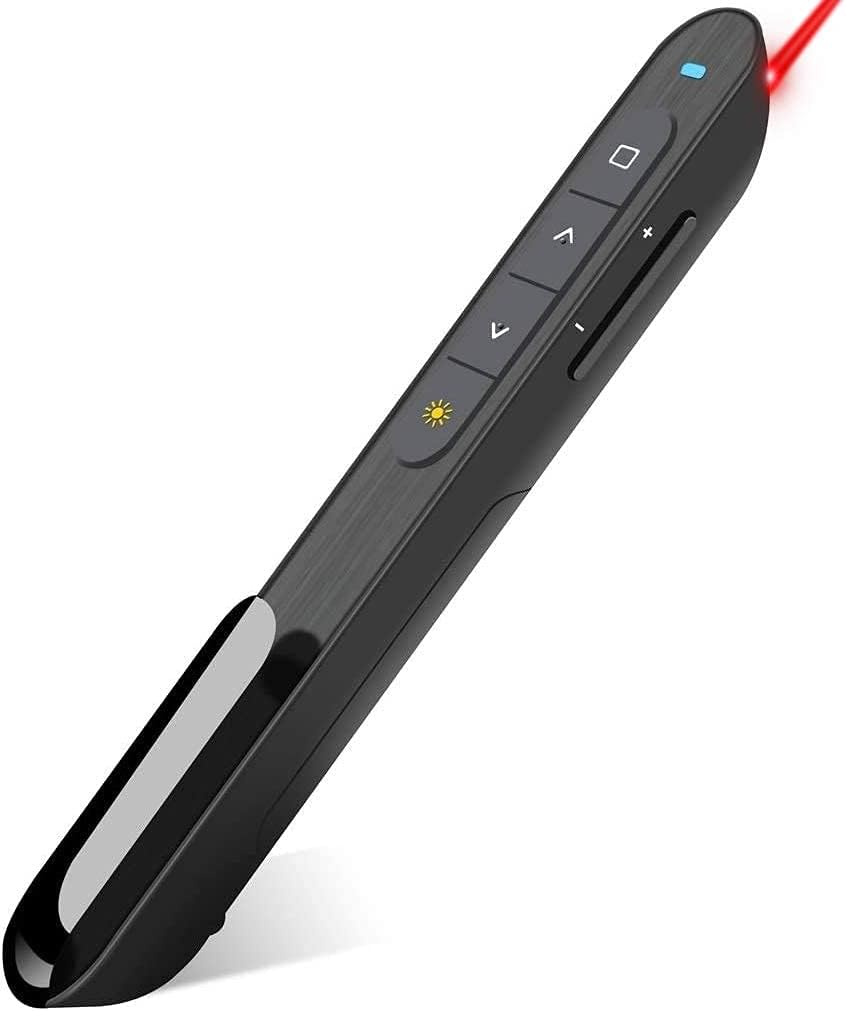
QUI Presentation Clicker with Volume Control
4.3Editor score
Affordable price point
328 feet wireless range
Volume control buttons
This guide compares ten top laser pointer for presentations clickers for teachers and professionals, highlighting features, range, and compatibility to help
Selecting the right laser pointer for presentations is crucial for effective communication in classrooms and conference rooms. A quality device ensures your audience follows your key points without distraction or technical issues during critical moments.
We evaluated ten highly rated wireless clickers based on laser visibility, wireless range, battery life, and ease of use. Our analysis focuses on real-world performance across various operating systems and presentation software environments.
Each pick below showcases distinct strengths tailored to different needs, from budget-friendly options to premium models with advanced features. Please note that pricing and availability may change frequently, so check current listings before purchasing.
4.3Editor score

4.6Editor score

4.6Editor score
The following table provides a side-by-side comparison of all ten selected laser pointer for presentations models. Review the key specifications to determine which device aligns best with your specific presentation needs and environment.



This wireless presenter stands out as the top choice for educators and professionals who need reliable visibility. With a 4.6-star rating, users praise its ability to cut through bright ambient light on projectors and whiteboards.
We may earn a commission when you buy through this link, at no additional cost to you.
The 532nm green laser delivers a crisp dot that is significantly more visible than standard red pointers. This feature ensures that audience members in the back row can clearly see your pointers without straining their eyes during long lectures.
While it does require a USB-C charge, the convenience of not hunting for AAA batteries outweighs the initial setup time. The device powers weeks of daily use on a single hour-long charge, making it cost-effective and environmentally friendly.
If you value visibility and convenience over the lowest possible price, this clicker is the ideal investment. It simplifies your workflow with intuitive buttons and universal compatibility, allowing you to focus entirely on delivering your message effectively.
The green light technology ensures your pointer remains visible even on bright LCD screens or in well-lit conference rooms where red lasers often fail.
By using a rechargeable battery, you eliminate the waste and expense of disposable batteries, ensuring you are always ready to present without interruption.
We may earn a commission when you buy through this link, at no additional cost to you.
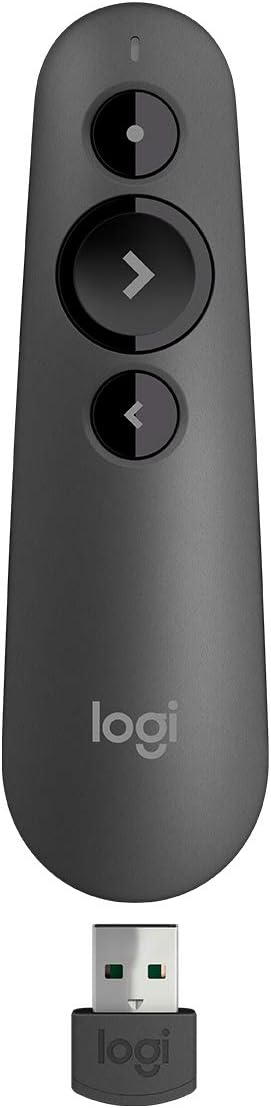
The Logitech R400 remains a classic choice for those seeking a straightforward and reliable presentation tool. Its high rating reflects consistent performance and durability over years of use in professional and educational settings.
We may earn a commission when you buy through this link, at no additional cost to you.
Features include a built-in Class 2 red laser that is easy to see against most backgrounds. The intuitive touch keys allow for effortless slideshow control without requiring you to look down at the device during your talk.
Battery life depends on AAA cells, which means you may need to replace them periodically. However, the included docking bay ensures the USB receiver stays securely attached to the clicker, preventing loss during travel.
For users who prefer a no-frills device from a reputable brand, this model delivers excellent value. It works seamlessly with PowerPoint and other common software, making it a safe and effective choice for daily presentations.
With no software installation required, you can plug it in and start presenting immediately, which is perfect for impromptu meetings or shared computer environments.
Logitech has a long history of producing reliable peripherals, so you can expect this device to function consistently without the glitches often found in generic alternatives.
We may earn a commission when you buy through this link, at no additional cost to you.
This clicker offers an impressive array of features at a very competitive price point. With a 4.4-star rating, it appeals to users who want advanced controls like volume adjustment without spending a premium amount.
We may earn a commission when you buy through this link, at no additional cost to you.
It supports various functions including page forward and backward, volume control, and hyperlink navigation. The bright red light is generally easy to see against most backgrounds, though it is not recommended for LCD or LED screens specifically.
The 100-foot wireless range provides significant freedom to move around a large room without losing connection. Additionally, the auto-sleep function helps conserve battery life, ensuring the device is ready when you need it.
If you are looking for a cost-effective tool that still offers robust functionality, this model is a strong contender. It is particularly suitable for classroom use where budgets are tight but functionality is still a priority.
Having dedicated buttons for volume and hyperlinks allows you to manage media playback and navigation without fumbling through menus during your presentation.
The extended wireless range allows you to walk to the audience or side of the stage while maintaining full control over your slides and audio settings.
We may earn a commission when you buy through this link, at no additional cost to you.
The R800 is a premium device designed for high-impact presentations where visibility and timing are critical. Its 4.6-star rating underscores its reliability and advanced features that are often missing from standard clickers.
We may earn a commission when you buy through this link, at no additional cost to you.
A key benefit is the brilliant green laser which is powerful enough to be seen even on LCD and plasma displays. This is a significant advantage for professionals working in modern conference rooms with large screens where red pointers struggle.
The built-in timer allows you to manage your presentation time with silent, vibrating alerts so you do not have to constantly check a watch or computer clock. The smooth contours and ergonomic design make it comfortable to hold for extended periods.
While it comes with a higher price tag and requires batteries, the features justify the cost for serious presenters. If you need to ensure your points are visible on any screen type and want precise time management, this is a top-tier choice.
The green laser technology ensures that your pointer remains distinct against blue or white backgrounds on digital displays, which is a common issue for red laser pointers.
The silent timer alerts help you stay on schedule without distracting the audience, which is essential for keynote speeches and timed lectures.
We may earn a commission when you buy through this link, at no additional cost to you.
The R500s is optimized for modern work environments where multiple devices are used. It supports Windows, Mac, iOS, Android, and various presentation software, making it a versatile choice for hybrid teams.
We may earn a commission when you buy through this link, at no additional cost to you.
A standout feature is the dual connectivity option, allowing you to connect via USB or Bluetooth. This flexibility ensures you can use the clicker even if your computer lacks a USB port, which is common on newer laptops.
Smart battery management extends the life of a single AAA battery up to 12 months, reducing the frequency of replacements. The Logitech Presentation App offers extra customization options for button functions and on-screen timers.
If you often present from tablets or phones or prefer a wireless connection without dongles, this model is highly practical. It bridges the gap between traditional clickers and modern portable computing needs effectively.
The ability to connect via Bluetooth means you can easily use this clicker with iPads or Android tablets, expanding your presentation capabilities beyond just laptops.
The companion app allows you to tailor button settings to your specific workflow, which is helpful for advanced presenters who need specific triggers for their slides.
We may earn a commission when you buy through this link, at no additional cost to you.
For those on a strict budget, this clicker offers an unbeatable combination of price and range. It holds a 4.3-star rating, indicating that users find it reliable enough for regular use despite the lower cost.
We may earn a commission when you buy through this link, at no additional cost to you.
The most impressive specification is the 328-foot wireless range, which is among the highest available in this category. This allows you to roam an entire hall or large auditorium while maintaining a solid connection to your computer.
Additional features like volume control and a convenient clip for notebooks make it practical for daily use. The bright red light helps mark key parts of slides, ensuring your audience follows your main points easily.
If you need a backup clicker or simply want a tool that works without breaking the bank, this is an excellent choice. It covers the essential needs of a presentation tool without unnecessary bells and whistles.
The 328-foot range gives you significant freedom to move around, which is useful in large training sessions or church presentations where you might step far from the podium.
The included clip allows you to attach the remote to your notebook or pocket, ensuring it is always close at hand when you need it.
We may earn a commission when you buy through this link, at no additional cost to you.
The Norwii N95 is a versatile device that bridges the gap between traditional USB clickers and modern connectivity. With a 4.5-star rating, it appeals to users who value a rechargeable battery and a bright green laser.
We may earn a commission when you buy through this link, at no additional cost to you.
It features a 2-in-1 USB receiver that supports both USB-A and USB-C, making it compatible with older PCs and newer Macs alike. The green pointer is significantly brighter than red ones, ensuring better visibility on most surfaces.
The programmable buttons allow you to remap functions to suit your personal needs, which adds a layer of customization often reserved for expensive devices. You can set different modes for forward and backward buttons easily via the app.
This model is a strong option for those who want a rechargeable device with a green laser at a reasonable price. It is particularly useful in environments where devices vary, requiring a single clicker to work with multiple connection types.
The dual receiver design means you do not need to carry separate dongles for different computers, simplifying your setup when working across various machines.
Being able to reprogram buttons helps tailor the clicker to your specific presentation flow, reducing the time you spend fumbling for the right button.
We may earn a commission when you buy through this link, at no additional cost to you.
This clicker is designed for flexibility, offering a dual connector receiver that fits both USB-A and USB-C ports. It receives a 4.4-star rating from users who appreciate its compact size and comfort in hand.
We may earn a commission when you buy through this link, at no additional cost to you.
The bright red light is easy to see against most backgrounds, making it effective for standard projection screens. Its ergonomic design ensures it is comfortable to hold, even during longer presentations where you are actively using the device.
It supports a wide range of operating systems and software, from older Windows versions to modern macOS systems. This broad compatibility makes it a safe choice for IT departments looking for a versatile tool.
If you need a clicker that can adapt to different hardware setups easily, this model is highly suitable. The compact form factor ensures it fits easily into a pocket or laptop bag for on-the-go work.
The ability to use the same clicker on both old and new computers without adapters saves time and reduces the need for multiple devices in your kit.
The ergonomic design prevents hand fatigue, which is important when you are holding the device for extended periods during teaching or speaking engagements.
We may earn a commission when you buy through this link, at no additional cost to you.
This clicker combines the convenience of dual connectivity with useful multimedia controls. With a 4.4-star rating, it is a solid option for presenters who need to manage volume levels without touching the keyboard.
We may earn a commission when you buy through this link, at no additional cost to you.
The bright red light pointer works well in standard lighting conditions, and the 100-foot wireless range allows for dynamic movement during presentations. The ergonomic body with a soft touch coating ensures a secure grip.
Magnetic receiver storage keeps the dongle secure inside the device, preventing loss between uses. The auto sleep technology helps conserve battery power, extending the lifespan of the two included AAA batteries.
If you value having all the necessary controls in one device, including volume adjustment and dual USB compatibility, this is a strong choice. It balances features and usability well for general classroom and office use.
The magnetic storage for the receiver ensures you do not lose the dongle, which is a common frustration with other clickers that have internal slots.
The ability to control volume directly from the clicker means you can adjust audio levels for videos or audio clips seamlessly during your talk.
We may earn a commission when you buy through this link, at no additional cost to you.
This remote is designed for simplicity and portability, making it ideal for travelers who need a reliable clicker. It holds a 4.5-star rating, reflecting satisfaction with its design and ease of use in various environments.
We may earn a commission when you buy through this link, at no additional cost to you.
The ergonomic design ensures comfort even for extended use, while the compact size allows it to fit easily into a pocket or small bag. It supports a 100-foot control distance, providing ample range for most rooms.
Operation is straightforward, requiring no drivers or software installation. It works with most major systems and software, including PowerPoint, Keynote, and Google Slides, making it a versatile tool for many users.
If you need a lightweight backup or a primary tool for travel, this clicker is a smart choice. It prioritizes ease of use and comfort, ensuring you can focus on your message rather than technical details.
The small weight and size make it easy to slip into a briefcase or laptop bag, ensuring you always have a pointer when you need one.
The plug-and-play nature means there is no setup time, allowing you to start your presentation immediately after plugging in the receiver.
We may earn a commission when you buy through this link, at no additional cost to you.
Choosing the right laser pointer for presentations depends on several key factors including laser color, wireless range, and battery type. This guide outlines the most important considerations to help you find the perfect tool for your needs.
The color of your laser pointer significantly impacts its visibility on different surfaces. Green lasers are generally more visible than red ones, especially on bright LCD or LED screens and in well-lit rooms. Red lasers are common and cost-effective but may fade on high-contrast backgrounds. Consider your primary presentation environment to decide if the extra cost of a green laser is worth it.
For modern conference rooms with digital screens, green is often the better choice to ensure all audience members can see your points clearly.
Wireless range determines how far you can move away from your computer while controlling the slides. For small meeting rooms, a range of 50 feet may suffice. However, for large lecture halls or auditoriums, you will need a device with at least 100 feet of range to ensure you can engage with the audience freely.
Always check the maximum range specification to ensure it matches the size of the room where you typically present.
You can choose between battery-operated models and rechargeable ones. Rechargeable clickers often use USB-C and eliminate the need to buy disposable batteries, saving money in the long run. However, battery-operated models might last longer between charges depending on usage patterns. Decide if you prefer the convenience of plugging in or swapping a battery.
Rechargeable models are becoming more popular due to environmental concerns and the ease of using standard USB charging cables.
Ensure the clicker is compatible with your operating system and presentation software. Most modern clickers work with Windows and Mac, but some may require specific software for advanced features. If you use a mix of devices like tablets or phones, look for a model that supports Bluetooth connectivity.
Plug-and-play models are generally the easiest to use as they do not require any driver installation on your computer.
Some clickers offer extra features like volume control, timers, or hyperlink navigation. These can be very useful for multimedia presentations where you need to control audio or move to specific slides. Consider whether these features align with your presentation style or if a basic slide advancer is sufficient.
A built-in timer is particularly helpful for speakers who need to stick to a strict schedule during their talk.
Look for clickers with solid construction and comfortable ergonomics. You want a device that feels good in your hand and does not break easily if dropped. Rubber grips and well-placed buttons are important for maintaining control during a presentation.
A sturdy build will ensure the device lasts through multiple years of regular use in a professional or educational setting.
Prices for presentation clickers vary widely based on features and brand. While premium models offer advanced features like green lasers and app integration, budget-friendly options can still perform basic tasks well. Determine your budget range before shopping to avoid overspending on features you do not need.
Often, a mid-range option provides the best balance between cost and functionality for most users.
Consider how the USB receiver is stored when not in use. Many devices have a slot on the clicker to store the dongle securely, preventing loss. A compact design is also beneficial if you travel frequently and need to fit the clicker into a small bag.
A device that is easy to carry ensures you can take it with you to any meeting or classroom without bulk.
To begin, insert the USB receiver into your computer's USB port. Most clickers are plug-and-play and do not require additional software installation. If your device has a power switch, turn it on to activate the connection.
Use the forward and backward buttons to navigate through your slides during the presentation. For models with volume controls, adjust the audio levels as needed without touching your keyboard. If you need to highlight a specific point, press the laser button to project the dot onto the screen.
To maintain your device, store it in a dry place when not in use. If it uses batteries, remove them if the device will not be used for a long time to prevent leakage. For rechargeable models, ensure you charge the battery fully before your next presentation to avoid power issues.
Yes, green laser pointers are generally more visible than red ones, especially on bright screens or in well-lit rooms. The human eye is more sensitive to green light, making the dot easier to see for audience members at a distance.
Most presentation clickers have a built-in slot or magnetic storage area to hold the USB receiver securely. This prevents you from losing the dongle and ensures it is always with the clicker when you are done.
Yes, most modern wireless clickers are compatible with Mac OS. They work as plug-and-play devices, so you typically do not need to install any drivers to use them with Keynote or PowerPoint on a Mac.
First, check the battery level or recharge the device if it is rechargeable. Ensure the USB receiver is plugged in correctly and the clicker is turned on. If issues persist, try moving the receiver to a different USB port.
Most clickers work without software installation. However, some premium models allow you to customize button functions through a companion app, which requires downloading software from the manufacturer's website.
Battery life depends on the model and usage frequency. Some models can last up to a year on a single set of batteries, while rechargeable ones may last weeks on a single charge depending on how often you use the laser.
Some clickers support Bluetooth connectivity, which allows them to work with tablets and smartphones. Check the product specifications to ensure it lists support for mobile devices like iPad or Android tablets before purchasing.
Many advanced models include volume control buttons that allow you to adjust audio levels for videos or music during a presentation. This feature is particularly useful for multimedia presentations where you do not want to touch the keyboard.
We have explored ten top-rated laser pointer for presentations clickers ranging from budget-friendly options to premium devices with green lasers. Each model offers unique strengths, whether it is long battery life, extended wireless range, or dual connectivity options.
When choosing, prioritize features that align with your specific needs, such as screen compatibility and ease of use. A device with a reliable laser and sufficient range will ensure your presentations run smoothly without technical interruptions.
Remember that prices and availability can change, so verify the current details on the product pages before making a decision. Investing in the right tool will enhance your ability to communicate effectively with any audience.