
StarTech USB-A DisplayLink Dual 4K 60Hz DP Mini Dock
4.4Editor score
USB 3.0 mini dock
Dual DP 4K 60Hz support
Compact and portable design
This guide compares the top 10 Displaylink Adapter options for Mac and Windows users seeking dual 4K displays, productivity boost, and reliable connectivity
Finding the right Displaylink Adapter can transform your single-screen laptop into a powerful dual-monitor workstation. These devices use specialized technology to bypass native video limits, allowing you to connect two external displays via one USB port for enhanced productivity and multitasking efficiency.
We evaluated ten top-rated adapters based on compatibility, video quality, build quality, and ease of setup. Our comparison focuses on models that support Mac M1 through M5 chips, Windows PCs, and ChromeOS, ensuring you find a solution that fits your specific operating system and workspace needs.
Each pick below highlights key features, pros, and cons to help you decide quickly. Remember that product availability and pricing can change frequently, so always check the latest details on the retailer site before making your final purchase decision for your home office.
4.4Editor score

4.4Editor score

4.8Editor score
The following comparison table lists the ten top products side-by-side to help you compare key specifications at a glance. Look at resolution support, port types, and system compatibility to find the adapter that best matches your laptop and monitor setup.



This WAVLINK adapter earns its spot as the best overall due to its strong performance and versatile connectivity. It supports dual 4K 60Hz displays from a single port, making it ideal for Mac and Windows users who need extra screen real estate.
We may earn a commission when you buy through this link, at no additional cost to you.
The hybrid 2-in-1 USB cable is a standout feature that allows you to connect to USB-C USB-A or Thunderbolt ports without needing extra adapters. This flexibility simplifies setup and reduces cable clutter at your workstation significantly.
While the need to install a driver might seem inconvenient at first, it ensures stable video output across systems. The lack of Linux support is a minor trade-off given its excellent performance on Windows macOS and ChromeOS environments.
Anyone needing a reliable dual monitor solution for work or study should consider this adapter. It balances performance, features, and price well, making it a top choice for most users seeking to expand their display setup effectively.
The hybrid cable design ensures you can plug into any modern laptop port without hunting for extra adapters to get started.
Dual 4K 60Hz support means your external monitors render sharp text and smooth motion for better productivity during long work sessions.
We may earn a commission when you buy through this link, at no additional cost to you.
This StarTech dock is a perfect budget-friendly option for users who need reliable dual display support without breaking the bank. Its compact size makes it easy to carry between home and office, while the extra network port adds practical value.
We may earn a commission when you buy through this link, at no additional cost to you.
The dual DP 4K 60Hz video output ensures your screens stay sharp and responsive, which is great for spreadsheet work or coding. The inclusion of a Gigabit Ethernet port means you can also add wired internet to your laptop easily.
Since it uses USB-A, older laptops will love it, but newer models might need an adapter. The DisplayPort outputs mean you need the right cables, which could be a small hurdle if you only have HDMI monitors ready to go.
For anyone on a tight budget needing a functional docking solution, this mini dock delivers. It proves you do not need to spend heavily to get dual 4K performance and useful connectivity features for daily tasks.
The GbE port allows you to add wired internet to your setup, improving speed and stability during important meetings or transfers.
Its small footprint means it slips easily into a laptop bag, making it perfect for professionals who travel often for work.
We may earn a commission when you buy through this link, at no additional cost to you.
This ACASIS adapter stands out for its premium build and powerful charging capabilities. The 100W PD port keeps your MacBook charged while driving two external displays, which is a massive benefit for long work sessions without outlet access.
We may earn a commission when you buy through this link, at no additional cost to you.
The aluminum alloy construction not only looks great but also helps dissipate heat efficiently during use. Users praise its stable video signals that avoid flickering, ensuring a smooth experience when working across multiple screens for hours.
The only downsides are the requirement to install a driver and the fact that it uses DisplayPort, which may need adapter cables for HDMI-only monitors. However, these are small hurdles given the overall performance and build quality you get.
Mac users who need a reliable and stylish docking solution will find this adapter ideal. It combines charging data transfer, and video output in one sleek package, making it a top premium choice for Apple laptops today.
With 100W PD support, your laptop stays fully charged even while powering two external displays and connected peripherals simultaneously.
The aluminum housing ensures the adapter stays cool during extended use, preventing thermal throttling and extending the device lifespan.
We may earn a commission when you buy through this link, at no additional cost to you.
Plugable is known for reliability, and this adapter lives up to its reputation with solid build quality and performance. It allows MacBook users to bypass native limits and connect two 4K monitors via one USB-C port for true multitasking freedom.
We may earn a commission when you buy through this link, at no additional cost to you.
One of the strongest selling points is the lifetime technical support from a North American team, which adds significant value for business users or home offices. It ensures you have expert help if any issues arise with drivers or setup.
Windows users enjoy plug-and-play functionality, while Mac users need to install a driver. The higher price tag might feel steep compared to some options, but the support and reliability often justify the cost for long-term use.
If you value stability and customer support, this is a smart investment. It works smoothly for productivity tasks like spreadsheets and coding, making it a great choice for professionals who depend on their dual monitors daily.
Lifetime access to a North American support team means you get expert help whenever you need it without worrying about warranty expiry dates.
This adapter solves the common M1 to M5 limitation by enabling two external displays plus the built-in screen for maximum workspace.
We may earn a commission when you buy through this link, at no additional cost to you.
This Plugable adapter is ideal for users who work with both modern and older laptops. The integrated USB-A adapter allows you to use the same device with USB-C laptops or older systems without needing extra dongles.
We may earn a commission when you buy through this link, at no additional cost to you.
The DL-6950 chipset ensures solid performance for dual 4K 60Hz displays, which is perfect for productivity tasks. Windows users should note that a driver install is needed, but once set up, it works reliably.
macOS is not recommended for this model, so Mac users may want to look elsewhere. However, for Windows and ChromeOS users, this adapter offers great versatility and reliability at a reasonable price point.
If you frequently switch between different computers or have a mix of USB ports, this adapter saves hassle. Its flexible design makes it a practical tool for hot-desking or managing multiple devices in one workspace.
The built-in USB-A adapter ensures you do not need to carry extra accessories when connecting to older laptops or USB-A ports.
Powered by the DL-6950 chipset, it delivers stable video output and handles multitasking tasks smoothly without lag or flickering.
We may earn a commission when you buy through this link, at no additional cost to you.
For those who need more than two screens, this WAVLINK adapter shines by supporting up to six monitors on a single PC. Each adapter handles one monitor, allowing you to build a massive desktop setup for trading or monitoring.
We may earn a commission when you buy through this link, at no additional cost to you.
Audio features are included with microphone and earphone outputs, which adds convenience for calls or media playback. The LED status indicator helps you quickly confirm connection status without digging into system settings.
The limitation is that you need one adapter per monitor, which can get expensive if you want many screens. But for users who value expandability, this flexibility is unmatched in the Displaylink adapter category.
If you need a scalable solution for a multi-monitor command center, this adapter fits the bill. Its broad compatibility with Windows macOS and ChromeOS makes it a versatile choice for different workplace environments.
You can connect up to six monitors on a PC by using multiple adapters, creating a powerful multi-screen setup for complex tasks.
Microphone and earphone outputs mean you can manage audio input and output directly through the adapter without extra hardware.
We may earn a commission when you buy through this link, at no additional cost to you.
This WAVLINK adapter distinguishes itself with DL-Chip encryption, adding a layer of data security that is rare in consumer adapters. It is designed for environments where protecting sensitive information during transmission is a priority.
We may earn a commission when you buy through this link, at no additional cost to you.
The dual 4K 60Hz output ensures your visuals are sharp and fluid, ideal for presentations and data analysis. It works well across Windows macOS and ChromeOS, though Linux iOS and iPad are not supported.
You must install a driver for setup, which is a small step for most users. The encryption feature might be overkill for home users, but it makes this adapter a top choice for corporate or secure office environments.
If you need secure and reliable dual monitor connectivity, this adapter offers peace of mind. Its focus on security combined with strong performance makes it an excellent option for professional and enterprise use cases.
DL-Chip encryption technology safeguards your data during transmission, ensuring secure connectivity for sensitive business operations.
Designed for enterprise security standards, this adapter meets the needs of IT departments deploying dual display setups securely.
We may earn a commission when you buy through this link, at no additional cost to you.
This ACASIS adapter is perfect for users who want to keep their laptop powered while using two external screens. The 100W PD charging ensures your battery stays full even during heavy work sessions, saving you from outlet hunting.
We may earn a commission when you buy through this link, at no additional cost to you.
It supports dual 4K 60Hz displays, which provides crisp visuals for coding spreadsheets or web browsing. The aluminum body looks professional and helps keep the device cool during extended daily use.
Driver installation is necessary on Macs, and USB-A ports are slower for large file transfers. However, for office work and productivity, these limitations are minor compared to the benefits of fast charging and dual display support.
If you value charging speed and style, this adapter is a strong pick. It keeps your MacBook or Windows laptop ready for action while giving you the workspace you need to get things done efficiently.
With 100W power delivery, your laptop charges quickly even while driving dual external displays and connected USB accessories.
This adapter is tailored for office environments where multitasking and charging are top priorities for daily workflow efficiency.
We may earn a commission when you buy through this link, at no additional cost to you.
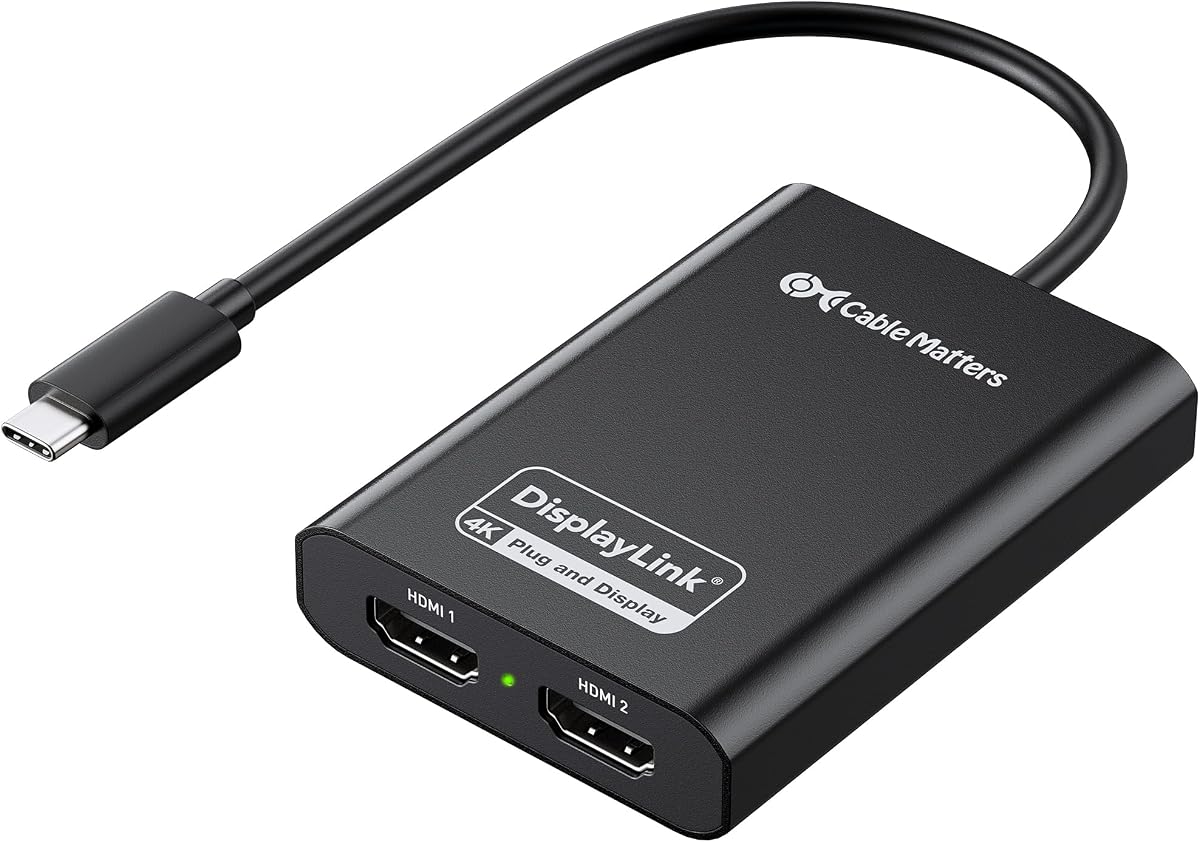
This Cable Matters adapter is built to last with a durable aluminum housing that resists wear and helps with heat dissipation. It delivers dual 4K 60Hz displays, removing the common 30Hz flicker that plagues older adapters.
We may earn a commission when you buy through this link, at no additional cost to you.
Best performance comes with newer Intel CPUs and Windows laptops, so check your system before buying. Mac users need to install the DisplayLink Manager app and grant specific permissions for the adapter to function correctly.
While performance depends on your CPU and USB bandwidth, the build quality is top-notch. If you prioritize a sturdy and reliable adapter that lasts through daily use, this model offers great value.
For those who want a tough and dependable adapter for dual displays, this is a great choice. Its durability and performance on compatible systems make it a smart investment for long-term use.
The aluminum housing ensures efficient heat dissipation, keeping the device cool and stable during prolonged operation.
Crafted with premium aluminum, this adapter is designed to withstand daily use and protect internal components from damage.
We may earn a commission when you buy through this link, at no additional cost to you.
Sonnet is known for quality peripherals, and this adapter maintains that reputation with reliable performance for Mac and Windows laptops. It supports dual 4K 60Hz displays and includes audio support for a complete multimedia experience.
We may earn a commission when you buy through this link, at no additional cost to you.
The included USB-A to USB-C adapter adds convenience if your laptop only has USB-C ports. It also supports higher refresh rates, which is great if you need smoother motion for design work or media.
Mac M1 and M2 notebooks are well supported, but users should check their specific model for compatibility. The price might be higher than some options, but the audio support and build quality add value to the purchase.
If you need audio output and high refresh rates in your dual setup, this adapter fits well. Its compatibility with modern Macs and included accessories make it a solid choice for media and productivity users.
Built-in audio support ensures you can connect external speakers or headphones to external monitors for an immersive media experience.
The included USB-A to USB-C adapter adds extra connection options so you can use the adapter on different laptop ports easily.
We may earn a commission when you buy through this link, at no additional cost to you.
Selecting the right Displaylink Adapter involves considering your operating system, required video resolution, and port types to ensure seamless integration with your existing setup.
Check if your operating system like Windows macOS or ChromeOS is fully supported. Mac users often need specific drivers or permission settings to enable extended displays properly.
Ensure the adapter works with your device processor and USB standards for stable performance without issues.
Choose an adapter that supports dual 4K 60Hz for sharp visuals and smooth motion. Some adapters may only support 30Hz, which can cause screen flicker and eye strain.
Higher refresh rates improve responsiveness for tasks like scrolling and video conferencing significantly.
Verify if the adapter uses USB-C USB-A or Thunderbolt to match your laptop ports. Some models include hybrid cables to improve flexibility across devices.
Extra ports like Ethernet or USB-A allow you to connect peripherals without extra hubs or accessories.
Most Displaylink adapters require driver installation to function. Be prepared to download and install software before first use for proper setup.
Windows and ChromeOS often support plug-and-play, while macOS may require additional permissions for video output.
Look for models with USB-C power delivery to keep your laptop charged while using external displays. This feature is useful for long work sessions without power outlets.
Ensure the charging wattage matches your laptop needs to avoid slow battery charging during use.
Aluminum housings offer better heat dissipation and durability compared to plastic. A compact design makes the adapter easy to carry in a laptop bag for travel.
Consider the weight and size if you often move your workspace or travel frequently for meetings.
Some brands offer lifetime technical support which can be valuable for business users. Check warranty length and terms before buying to ensure protection against defects.
Reliable customer service helps resolve driver or connectivity issues quickly when they arise.
Compare prices based on features like charging ports or encryption that add real value. Budget options may lack advanced features but still provide solid basic dual display support.
Consider long-term value by investing in adapters with warranties and strong reputations for reliability.
Connect the adapter to your laptop USB port and plug in external monitors using HDMI or DisplayPort cables. If required download and install the Displaylink driver from the manufacturer website for initial setup.
After driver installation allow any system permissions for screen recording or display access. Then set up your displays in system settings to choose between extended or mirrored modes.
Keep the adapter ventilated and avoid enclosing it in tight spaces to prevent overheating. Unplug the device only when your computer is off to maintain proper driver state and avoid connection issues.
Not all Mac laptops support Displaylink adapters equally. Models with M1 to M5 chips often require driver setup but can use external displays effectively. Older Intel Macs generally support them without issues for extended desktops.
Displaylink adapters are designed for productivity not gaming. They may introduce slight input lag and do not support high refresh rates needed for gaming. It is best to use the laptop native video output for gaming instead.
Drivers enable the computer to communicate properly with the adapter for video output. Without the driver the system may not recognize the connected displays or may not show video on external monitors correctly.
Many Displaylink adapters do not support Linux or Unix systems well. Compatibility varies by vendor and driver support. Check the product page before buying if you plan to use Linux on your laptop.
Some adapters support up to six monitors on Windows by using multiple units. However, most models support dual displays per adapter. Verify your specific adapter specs to see how many monitors it can handle.
Some models include USB-C power delivery ports to charge your laptop while in use. Check the product description for power delivery wattage to confirm if it meets your charging needs during work.
HDMI adapters connect directly to HDMI monitors while DisplayPort adapters may need cables. DisplayPort often supports higher refresh rates. Choose based on your monitor inputs to avoid extra cable adapters.
Most Displaylink adapters do not support HDCP protected content like Netflix or Hulu. This is due to licensing restrictions on video transmission. Use the laptop internal screen for streaming media instead.
We explored ten top Displaylink Adapter options to help you find the right fit for your needs. The WAVLINK USB 3.0 Dual HDMI Adapter stands out for versatility while the ACASIS Dual DP Adapter offers premium charging and design.
Prioritize system compatibility and power delivery needs when choosing your adapter. If you use a Mac M-series laptop look for models specifically verified for smooth driver integration and extended screen modes.
Prices and availability can change so check the latest offers before making your purchase. Use this guide to simplify your decision and find a reliable dual display solution that boosts your productivity today.