
HP 17 Laptop
5.0Editor score
17.3 inch FHD Anti-Glare display
Ryzen 5 7520U processor
Up to 9 hours battery life
Photographers need reliable tools to edit their work efficiently. A good laptop for Lightroom Classic delivers strong performance accurate colors and long battery life for smooth workflows.
We evaluated ten models based on processor power memory capacity display quality and real world usability. Each option supports demanding editing tasks while fitting different budget needs.
Every pick shows key strengths and trade-offs to guide your decision. Keep in mind that prices change often so check current listings before you buy.
5.0Editor score
4.3Editor score
4.3Editor score
As an Amazon Associate we earn from qualifying purchases.
This side by side comparison highlights the essential specs and strengths of each model to help you quickly find the best fit for your editing needs.




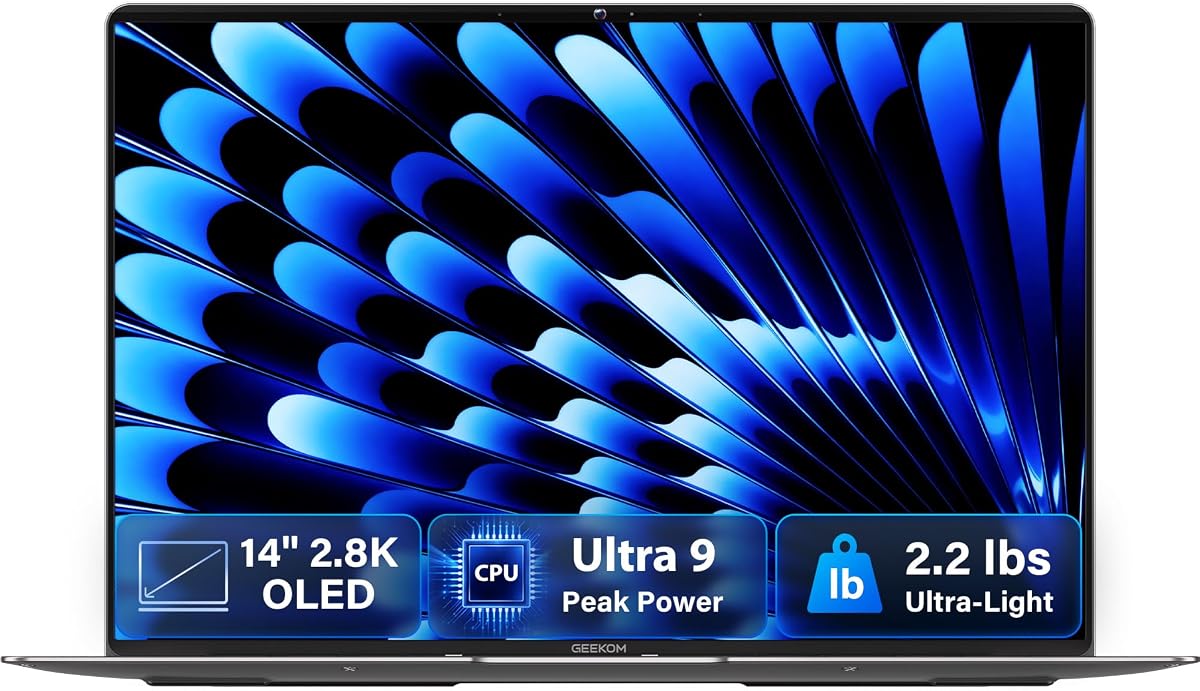
This model earns our top spot due to its stunning OLED display and powerful Core Ultra processor. It handles Lightroom Classic smoothly while remaining portable enough for fieldwork.
We may earn a commission when you buy through this link, at no additional cost to you.
The 2.8K OLED screen provides true blacks and vibrant colors essential for photo editing. With 100% DCI-P3 coverage you get precise hues for accurate corrections and adjustments.
While it offers strong performance the thermal system keeps noise low which helps during long editing sessions. The battery lasts all day so you can work anywhere without hunting for outlets.
Photographers who prioritize screen quality and portability will love this machine. Its combination of color fidelity and speed makes it a standout for serious Lightroom users.
Self-lit pixels deliver deeper blacks and sharper contrast helping you see details hidden in shadows or highlights.
With 32GB RAM and Gen4 SSD you can manage large catalogs and export batches without slow down.
We may earn a commission when you buy through this link, at no additional cost to you.
The LG gram offers a rare mix of a large display and ultra light build. Its 17 inch panel gives you plenty of room to view panels and history stacks while editing.
We may earn a commission when you buy through this link, at no additional cost to you.
Despite the size it remains easy to carry thanks to magnesium alloy construction. The IPS panel covers 99% of the DCI-P3 space ensuring reliable colors for your work.
Performance is adequate for Lightroom but older CPU and limited RAM may slow you down with huge catalogs. Still it provides a comfortable editing environment.
If you prefer a big screen over raw power this model fits well. It balances visual real estate with mobility better than most 17 inch laptops.
The 16:10 aspect ratio and wide display help reduce clutter so you can see more of your images at once.
Weighing less than typical 15 inch models it defies expectations for a laptop of this scale.
We may earn a commission when you buy through this link, at no additional cost to you.
This Aspire model brings modern AI features and a responsive touchscreen to Lightroom Classic. It enables quick adjustments using touch gestures and stylus input if available.
We may earn a commission when you buy through this link, at no additional cost to you.
Powered by a Core Ultra 7 chip with NPU it handles AI tools and background tasks efficiently. The 32GB RAM ensures smooth operation even with many apps open.
The 2TB SSD holds a vast library of photos without external drives. Battery life supports full workdays so you can edit during travel or client meetings.
Photographers who value direct control and ample storage will appreciate this design. It blends touch interactivity with solid performance for daily photo workflows.
Use your finger or stylus to scrub through images or adjust sliders directly on the screen for a natural workflow.
On device AI helps with background blur and photo edits without needing cloud processing or slow uploads.
We may earn a commission when you buy through this link, at no additional cost to you.
This NIMO laptop offers strong entry level performance for Lightroom Classic. Its price makes it accessible while the design lets you upgrade as your needs grow.
We may earn a commission when you buy through this link, at no additional cost to you.
The Ryzen 5 6600H provides enough power for photo editing and light video work. You get dual RAM slots and M.2 expansion so you can boost specs later.
The display is sharp but not as vibrant as OLED options. For budget conscious users who plan to upgrade it delivers excellent long term value.
Students or freelancers starting out will find this practical. It balances cost flexibility and power without locking you into fixed specs.
Adding more RAM or SSD capacity is simple without voiding warranty or replacing the whole system.
It handles Lightroom smoothly at a fraction of the cost of premium models.
We may earn a commission when you buy through this link, at no additional cost to you.
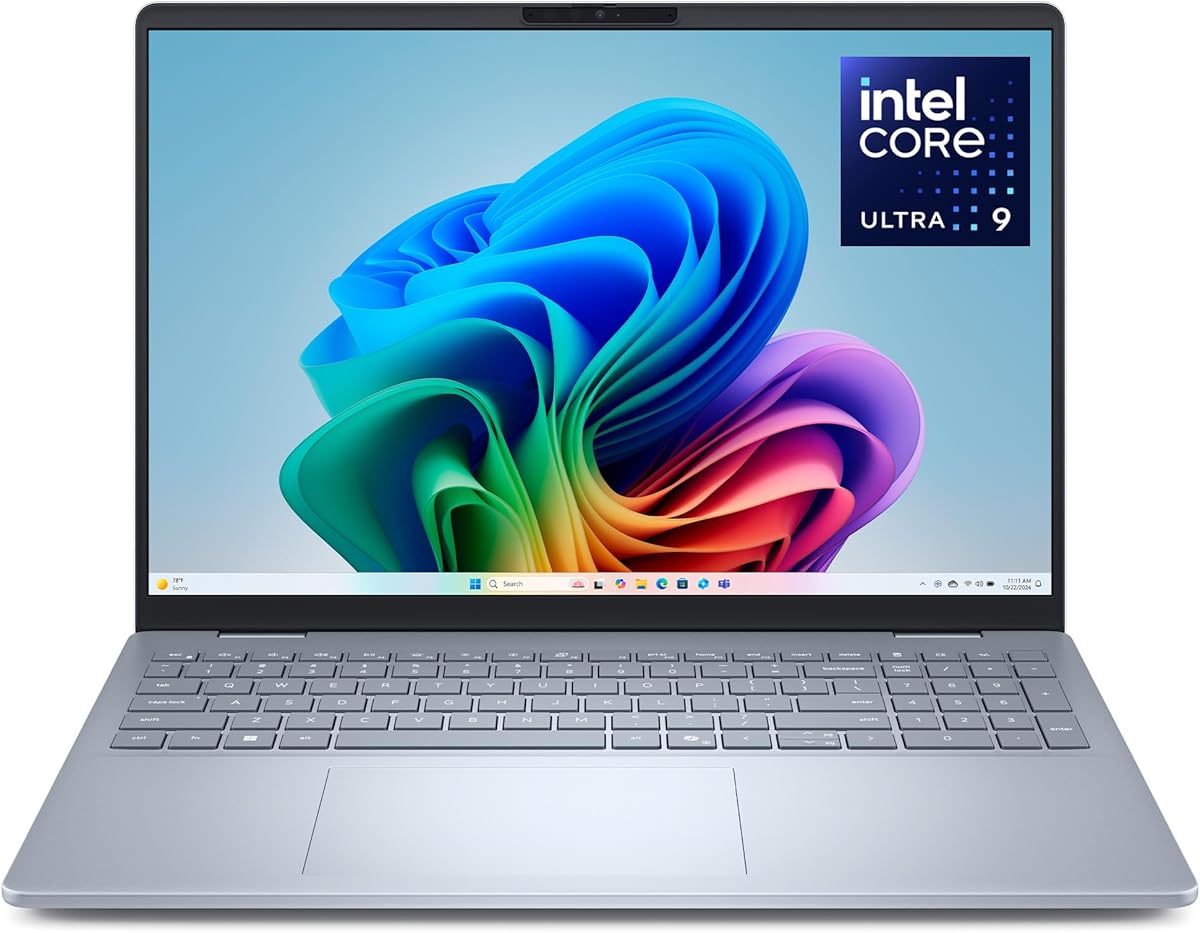
The Dell 16 Plus delivers high end performance and build quality ideal for professionals. Its QHD+ screen is bright and detailed for precise editing work.
We may earn a commission when you buy through this link, at no additional cost to you.
Powered by the latest Core Ultra 9 chip it handles heavy catalogs and exports effortlessly. The aluminum chassis is durable and designed to withstand daily rigors.
Dell includes onsite service which minimizes downtime when issues arise. For teams or pros who need reliability this support adds significant value.
Invest in this if you need the best performance and warranty. It is built for serious creators who want no compromises on speed or support.
The 16:10 aspect ratio maximizes vertical space letting you see more rows of thumbnails and panels.
Onsite support ensures repairs happen fast so you lose less productive time.
We may earn a commission when you buy through this link, at no additional cost to you.
This second NIMO model boosts specs with a Ryzen 7 and 32GB RAM making it excellent for multitasking. It runs Lightroom alongside other apps smoothly.
We may earn a commission when you buy through this link, at no additional cost to you.
The PCIe 4.0 SSD offers fast read write speeds for quick image access. A USB4 port allows connection to external GPUs or docks if needed later.
While the display is not premium the internal power is robust for the price. Fast charging reduces downtime during busy workflow days.
Choose this for raw performance on a budget. It is suited for creators who juggle many files and apps simultaneously.
With 32GB RAM you can keep Lightroom Photoshop and browsers open without swapping memory.
Connect fast storage or displays to expand capabilities as your projects grow.
We may earn a commission when you buy through this link, at no additional cost to you.
This HP 17 inch model serves as a great desktop replacement. Its screen size and RAM capacity support long editing sessions without external monitors.
We may earn a commission when you buy through this link, at no additional cost to you.
The Ryzen 5 chip paired with 32GB memory handles Lightroom well. The numeric keypad helps if you enter data or use keyboard shortcuts heavily.
Portability is limited but acceptable for studio or home use. Battery life suits normal workdays but not long travel days without a charger.
Perfect for photographers working primarily at a desk. It delivers comfort and power where size is not a major concern.
Extra screen space helps organize panels and previews simultaneously.
Numeric keypad aids data entry and navigation in complex workflows.
We may earn a commission when you buy through this link, at no additional cost to you.
This budget HP model offers a wide screen at a low price. It works for light photo edits and beginners needing more space than smaller laptops.
We may earn a commission when you buy through this link, at no additional cost to you.
The Ryzen 5 processor handles basic tasks well though 8GB RAM limits heavy multitasking. Included accessories reduce setup costs right away.
For hobbyists or occasional editors it is a sensible entry. Keep in mind you may need upgrades if workload increases soon.
Buy this for a cost effective starter setup. It gives you a large workspace without spending much.
The price makes it easy to test Lightroom without large investment.
Large screen helps view images and tools side by side comfortably.
We may earn a commission when you buy through this link, at no additional cost to you.
This light laptop suits basic viewing and minor edits. Its size and Office bundle make it handy for students needing document work plus light photos.
We may earn a commission when you buy through this link, at no additional cost to you.
The Pentium CPU struggles with heavy edits so expect slower export times. Still it offers a functional screen for basic corrections and browsing.
Battery life limits long sessions so plan accordingly. Use it for travel viewing or simple tasks rather than serious processing.
Consider it for students or casual users. It covers essentials without demanding much budget or weight.
Easy to carry in any bag for daily commutes or classes.
Included Office apps help handle school or business paperwork easily.
We may earn a commission when you buy through this link, at no additional cost to you.
This BLUEING model is for users who need minimal power. It works for viewing and light edits but not for large catalogs.
We may earn a commission when you buy through this link, at no additional cost to you.
The compact 14 inch build fits small bags easily. Expandable storage helps if you keep files on external media.
Expect slow speeds with intensive tasks so reserve it for simple jobs. The hinge lays flat for sharing screens on tables.
Pick it for tight budgets or secondary use. It serves basic needs where performance is secondary to cost and size.
TF card slot lets you add storage without opening the laptop.
Compact design ensures it slips into any carry case.
We may earn a commission when you buy through this link, at no additional cost to you.
Selecting the right laptop for Lightroom Classic involves balancing processing power memory and color accuracy with portability and price.
Lightroom Classic relies heavily on CPU speed and core count for importing and exporting. Choose multi core processors like Intel Core Ultra or AMD Ryzen 7 for smooth performance.
Look for at least 6 cores to handle complex edits without lag.
RAM determines how many images and panels you can have open simultaneously. At least 16GB is recommended but 32GB ensures future proofing for large catalogs.
Prioritize 32GB if you work with thousands of files daily.
Accurate colors are critical for editing. Look for high resolution screens with wide color gamuts like DCI-P3 or Adobe RGB to ensure your edits print correctly.
Choose OLED or IPS panels with 100% DCI-P3 coverage for best results.
Fast storage reduces load times for catalogs and previews. A PCIe NVMe SSD with high read speeds improves overall responsiveness compared to SATA drives.
Opt for PCIe 4.0 SSDs for quickest access to files.
If you travel often weight and battery life matter. Aim for under 3.5 lbs and at least 8 hours of battery to work on location without outlets.
Smaller 14 inch models are ideal for travel compared to larger screens.
Efficient cooling keeps the laptop quiet and stable during long sessions. Good heat pipes prevent throttling which can slow down exports over time.
Look for advanced cooling systems like IceBlade or vapor chambers.
Multiple ports simplify connecting external monitors and card readers. USB4 and Thunderbolt support allow fast transfers and high resolution display output.
Ensure enough ports to avoid constant dongle swapping.
Set a realistic budget that balances specs with long term needs. High end features like OLED are pricey but pay off in color accuracy.
Invest more in screen and CPU than in brand name if needed.
Start by calibrating your display with a colorimeter to ensure accurate edits match your final prints or digital exports.
Keep your SSD free of clutter and regularly clear Lightroom cache to maintain speed over time.
Use the laptop on a flat surface and avoid soft fabrics to prevent overheating while editing for hours.
Adobe recommends at least 16GB of RAM for smooth operation. For large catalogs or multitasking 32GB ensures better performance without slowdowns during editing.
OLED offers deeper blacks and wider color gamuts which help with contrast adjustments. IPS is still reliable and may last longer without burn in risks.
Multi core processors like Intel Core Ultra 9 or AMD Ryzen 7 handle exports faster than lower end chips. Look for recent generations with high thread counts.
Yes but expect slower speeds on heavy catalogs. Budget models work for casual editing but upgrade RAM and SSD if performance lags.
Thermal throttling occurs when heat builds up preventing the CPU from maintaining high speeds. Ensure vents stay clear and use cooling pads if needed.
Integrated graphics often suffice for photo editing though dedicated GPUs speed up certain AI features. Prioritize CPU and RAM first if budget is limited.
Expect 8 to 16 hours depending on usage. Models with 72Wh or larger batteries support full workdays away from power sources.
Both platforms support Lightroom Classic equally. Choose based on preferred OS ecosystem and hardware compatibility with your existing gear.
The top picks balance speed color accuracy and portability for photographers at every level. The GEEKOM GeekBook leads with OLED visuals and powerful specs.
Prioritize screen quality and memory if you want reliable color work. Portability matters most for field shooters who edit on location.
Check current listings before buying since specs and offers may change. This guide helps narrow options to find the right fit for your needs.